
BetPro app not working? Start with three quick checks. Test your internet, restart the app, and try the browser access you already trust. If the browser works but the app does not, the problem may be on your phone. If both fail, check the connection or account status. Do not install an unknown APK to fix the issue.
It is annoying when an app stops at the loading screen. Maybe it closes at once. Maybe you see a blank screen. Or perhaps your password worked yesterday but fails today.
These problems can look the same. Yet they may have different causes. A slow connection needs a different fix from a locked account. That is why it helps to check the problem before changing anything.
This guide explains seven safe Android checks. You will also learn when to stop, what not to delete, and how to ask for help without sharing private details. It is written for adults in Pakistan who already use a supported BetPro access method.
Important: This is a device and account-safety guide. It does not confirm that any named APK is official, that a platform is online, or that betting services are lawful in your location.
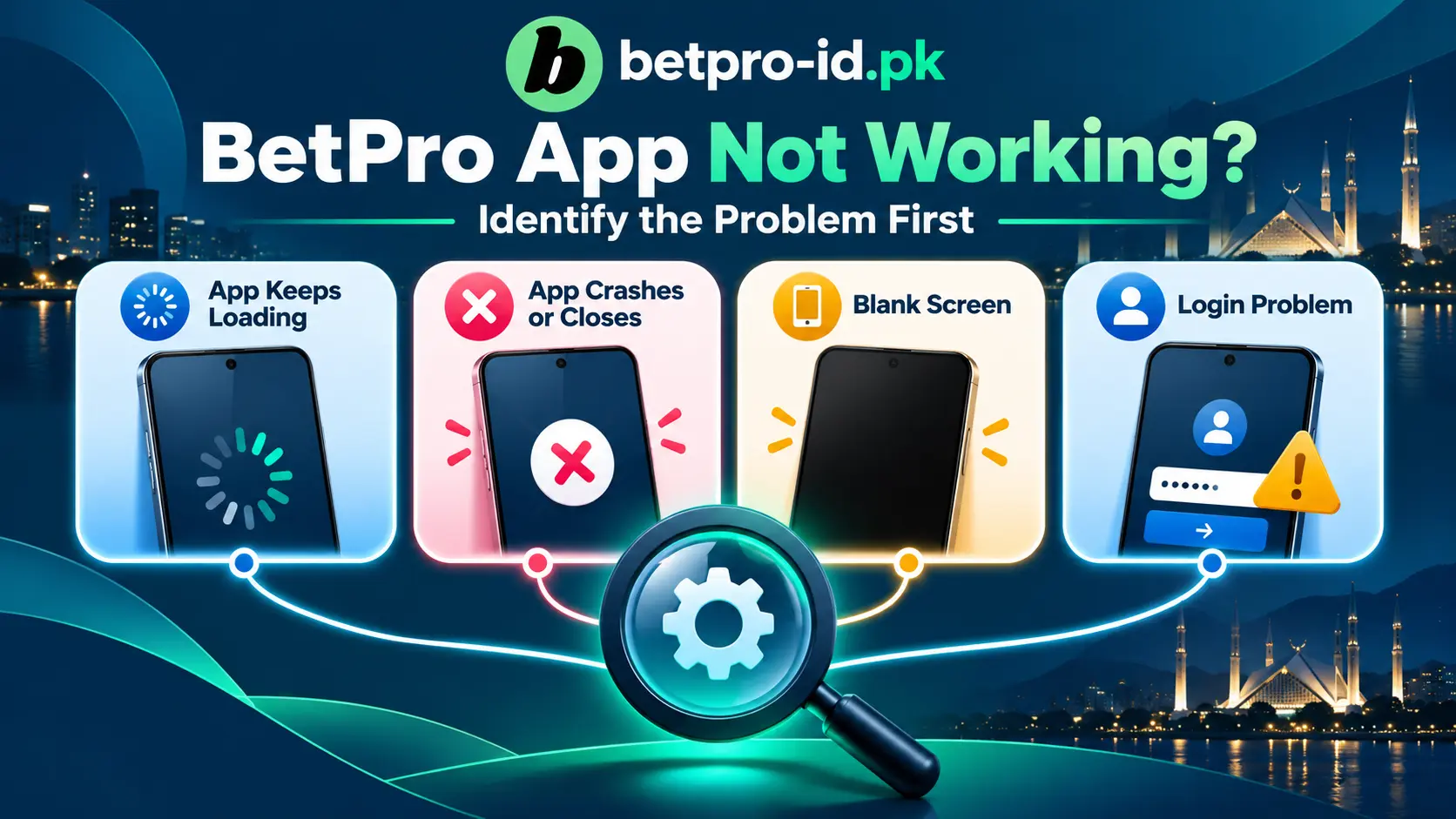
First, find out what is not working
Before you tap a long list of settings, look at the exact problem. Do not assume every loading error means the app server is down.
| What you see | First safe check | What it may mean |
|---|---|---|
| App will not open | Restart the phone | A temporary app or phone problem |
| App opens, then closes | Force stop and clear cache | Corrupt temporary files or an app error |
| Loading wheel never ends | Test Wi-Fi and mobile data | Connection, app, or service problem |
| Blank or white screen | Check Android updates and cache | An app display or loading problem |
| Password is rejected | Check the ID and saved password | A login or account issue |
| Install or update fails | Check storage and file source | Device, version, or unsafe file issue |
| App works on another phone | Check this phone’s settings | A device-specific problem is more likely |
This table gives you a starting point. It cannot tell you the exact cause on its own. Use the steps below in order. Stop when the problem is fixed.
BetPro app not working? Try these 7 safe fixes
1. Check your internet connection
Start with the simplest test. Open a normal website in your phone browser. Choose one you already know, such as a news or weather website.
If the page does not load, your connection may be the issue. If it loads well, the problem may be limited to the app or the service it uses.
Try these checks:
- Turn Wi-Fi off. Try your mobile data.
- If mobile data is slow, switch back to a trusted Wi-Fi network.
- Turn airplane mode on for a few seconds, then turn it off.
- Move to a place with a better signal.
- Check whether other apps can reach the internet.
Avoid testing through unknown Wi-Fi networks. A public network may expose more of your activity than a private connection. Never type passwords on pages that look different from the trusted access page you already use.
2. Close the app and restart your phone
Sometimes an app gets stuck in the background. A clean restart can end that stuck session.
First, close the app from your recent-apps screen. Then open it once more. If it still freezes, restart your phone using the power menu.
Wait for the phone to finish starting. Let the internet connect. Then try the app again.
If the same error returns, move to the next check. A restart is a quick test, not proof that the app itself is healthy.
3. Force stop the app
Force stop shuts down a running app. It is different from deleting the app.
On many Android phones, you can do this:
- Open Settings.
- Tap Apps or App management.
- Find the app you are checking.
- Tap Force stop.
- Confirm, then open the app again.
The names may differ on Samsung, Xiaomi, Infinix, Tecno, Oppo, and other phones. If you cannot find the option, search for Force stop inside your phone’s settings.
Force stop should not erase your account. Still, unsaved work inside the app may be lost. Finish any important task before using it.
4. Clear the cache, but do not clear storage yet
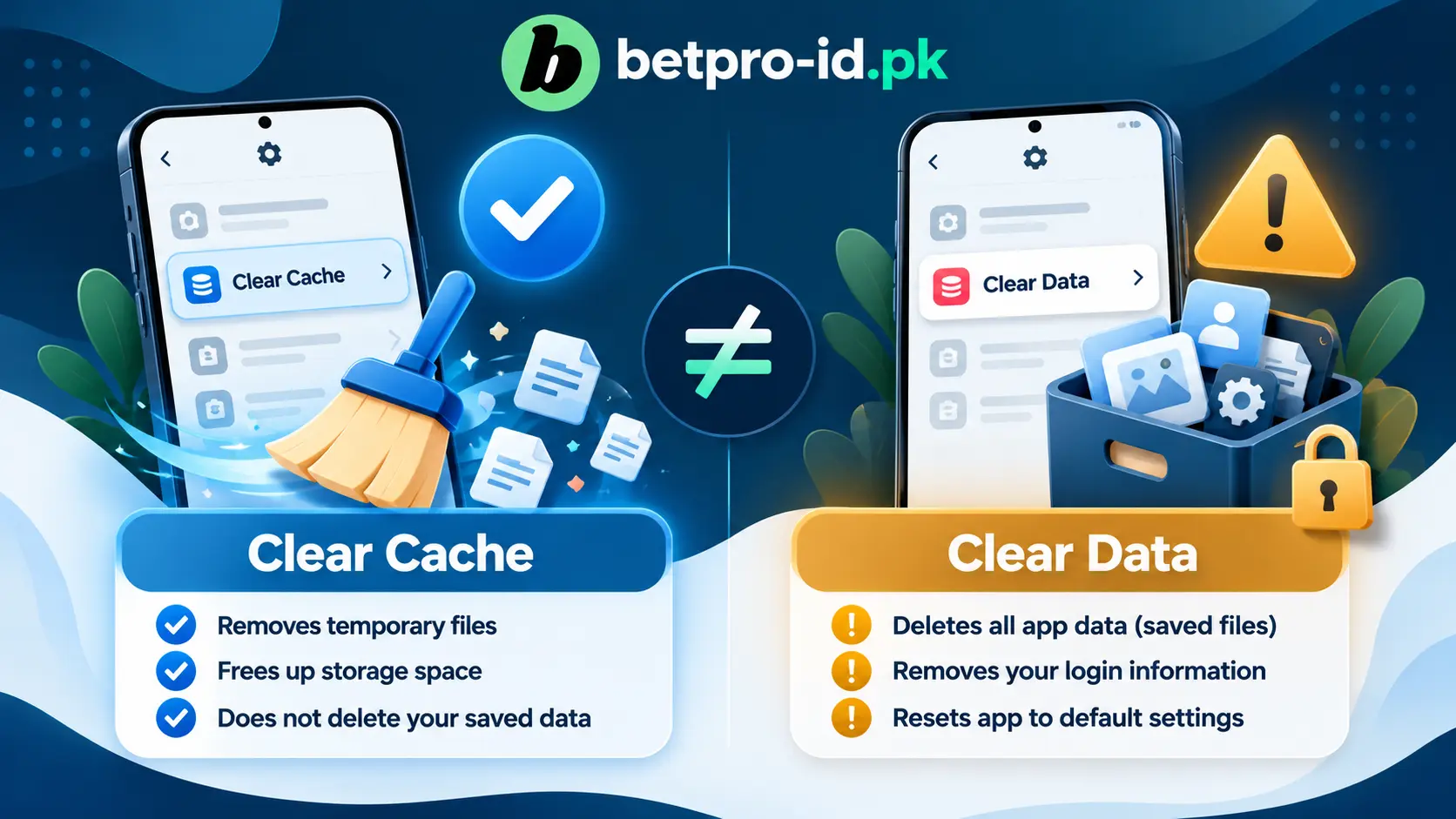
Your phone stores temporary files called a cache. They help apps load faster. Sometimes an old or damaged file can cause trouble.
You can usually clear the cache this way:
- Open Settings and choose Apps.
- Select the app.
- Tap Storage or Storage & cache.
- Choose Clear cache.
- Open the app and test it again.
Be careful: Clear cache is not the same as Clear data or Clear storage. Clearing storage may remove saved settings, downloaded files, or local login information. You may need to sign in again.
If you do not know your current ID and password, do not clear app storage. Ask for account help first. An app repair should not leave you locked out of your own account.
Google’s Android help explains the difference between clearing temporary cache and removing app data. You can read its official app troubleshooting instructions.
5. Check phone storage, date, and software updates
Delete old videos or other files you no longer need. Do not remove important photos or records just to make room for one app. Back up anything you want to keep.
Next, check your phone’s date and time. Use the automatic date and time setting when available. A wrong clock can lead to secure-connection errors on some services.
Also check for Android system updates:
- Open Settings.
- Find Software update or System update.
- Review any available update from your phone maker.
- Back up important data and follow the on-screen steps.
Do not install an app that claims it can magically boost RAM or repair any phone. These tools may ask for too many permissions and cause more problems.
6. Check app updates and the source before reinstalling
If the app became unstable after a phone update, the app version may need attention. But this is where users can face a new risk: fake download links.
A search result, social post, or forwarded APK is not proof of an approved file. A familiar name or logo can be copied. Even a listing with the words “latest version” may be misleading.
Before any update, ask yourself:
- Do I know who made this app?
- Does the file come from a source I have already verified?
- Does the update ask for new or unusual permissions?
- Do I have the correct account details if the app logs me out?
- Is Google Play Protect showing a warning?
Keep Play Protect enabled. Google says it checks apps for harmful behavior, including apps installed from outside the Play Store. Read Google’s Play Protect guidance before handling an unknown file.
Do not disable phone security to force an APK to install. Do not follow a stranger’s request to turn off protection or give remote control of your phone.
Reinstall only as a last step. Uninstalling may remove local data. First confirm the app’s source and make sure you can get back into your account. The existing BetPro app download safety guide covers file checks in more detail.
7. Test trusted browser access to narrow down the problem
A browser test can help you see whether the problem is limited to the app. Use a web address you already know and trust. Do not search for a replacement login domain just because the app failed.
Open the trusted page in your normal browser. Check whether it loads and whether the sign-in screen behaves as expected.
Now compare the results:
- Browser works, app fails: Check the app’s cache, version, and phone settings.
- Both fail on one connection: The network or service may be involved.
- Browser loads but login fails: Check credentials or account status.
- Both fail on several devices: Stop repeated attempts and ask verified support to investigate.
For broader app and browser guidance, see the site’s BetPro App help page. This article focuses on a stopped or crashing app, not on finding a download link.
What if the problem is still there?
The app opens to a white or black screen
First, wait a short moment. Then test another website. If your network is fine, close and reopen the app.
Next, force stop it and clear only the cache. Check phone storage and available software updates. If the screen remains blank, write down when it appears. Does it happen before the logo, after the logo, or after you try to sign in?
The app keeps loading or says “connection error”
Switch between mobile data and trusted Wi-Fi. Then check whether other apps work. If everything is slow, focus on your connection first.
If only this app fails, try the browser test. Do not assume a nationwide outage based on one phone. You would need a reliable service notice or more evidence to confirm that.
The app closes every time you tap Login
This may be a software problem. Try force stop, restart, and clear cache. Note whether the crash happens only after you enter details.
Do not send your full password to anyone who offers to test the app for you. Support may need the error text and device model. It does not need your private password.
The ID or password is rejected
Check the ID name and password fields. Watch for spaces at the start or end. Make sure the phone did not fill an old saved password.
Try one careful correction. Do not guess again and again. The account may be inactive or locked, which is different from a typing mistake.
If you forgot your password, contact your existing assigned dealer through the known support conversation. The current site’s password reset guide explains that route. For inactive or locked account messages, use login troubleshooting.
The app stopped working after a recent update
Remember when the issue began. Did you update Android, replace the app, or change your phone? That timeline matters.
A fresh update can fix a bug, but an untrusted replacement file can create a worse problem. If the known source is unavailable, stop and seek verified guidance.
The app works on Wi-Fi but not on mobile data
First, check whether you have mobile data left. Then look at your phone’s data settings. Data Saver may restrict an app’s background access.
If many websites fail on the same network, contact your mobile provider. If one service alone fails, the cause may be elsewhere.
When you should stop troubleshooting
Not every problem should be fixed by trying harder. Stop when a screen asks you to do something unsafe.
Warning signs include:
- An app asks you to turn off Play Protect.
- A contact asks for your password, OTP, or wallet PIN.
- A helper wants remote control of your phone.
- A download asks for permissions that do not match its job.
- A new page looks different from the address you normally use.
- Someone promises an instant fix in exchange for money.
Close the suspicious page. Do not install the file. If you already shared a password, change it through a trusted method from a safe device. Check other accounts where you used the same password.
The website’s account security guide explains more warning signs. Keep in mind that fixing an app is less important than protecting your phone and personal information.
How to explain the problem to support
A clear report saves time. It helps the person reviewing your issue avoid guessing.
Use the published support page to check the route you already know. Do not trust a new WhatsApp number just because it appears under a video or search result.
Before you send a message, write down:
- The exact error words on the screen.
- Your phone brand and model.
- Your Android version, if known.
- Whether you use Wi-Fi or mobile data.
- Whether the issue started after an update.
- Which safe checks you already tried.
- Whether trusted browser access works.
You can send a short message like this:
Hello. The app closes after I open it. I use an Android phone. I restarted the phone and cleared the app cache. The problem still happens. Browser access works on my usual connection. Please tell me what else I should check.
If you include a screenshot, hide your ID when it is not needed. Cover passwords, OTPs, phone numbers, account balances, and payment details. A screenshot is useful only when it protects your privacy.
Never send your phone unlock code. Never install screen-sharing software just to prove an error. You can describe a problem without giving someone control of your device.
How to lower the chance of the problem coming back
Keep Android updated when your device maker provides a trusted update. Leave Play Protect on. Keep some free storage space. Use a strong screen lock.
Save your current login details in a trusted password manager. Do not keep them in a public chat or a screenshot. Remove old saved passwords after a safe password change.
Review app permissions from time to time. An app that needs basic display access should not automatically receive control over your messages, contacts, or whole phone.
Check any update source before installing it. And keep a record of the trusted support route you already use. That way, one failed app does not send you toward a fake link.
BetPro app nahi chal rahi? Roman Urdu mein madad
Agar BetPro app nahi chal rahi, sab se pehle internet check karein. Wi-Fi se mobile data par switch karke dekhein. Phir app band karein aur phone restart karein.
Agar app phir bhi crash ho, phone settings mein ja kar Force stop karein. Zaroorat ho to sirf Clear cache use karein. Clear data ko bina samjhay press na karein. Is se saved information hat sakti hai.
Apna trusted browser access check karein. Agar browser kaam kar raha hai aur app nahi, to masla app ya phone mein ho sakta hai. Agar dono fail hon, to network ya account status check karwana behtar hai.
Random APK download na karein. Password, OTP, wallet PIN, ya phone ka remote access kisi ko na dein. Madad ke liye wahi support route use karein jis par aap pehle se bharosa karte hain.
Frequently asked questions
Why is the BetPro app not working even though my internet is fine?
A working internet connection rules out only one possible cause. The app may have a temporary error, old cached files, or a version issue. Start with restart, force stop, and clear cache. Then compare the app with trusted browser access.
Will clearing cache delete my BetPro ID?
Clearing the cache normally removes temporary app files, not your account itself. But clearing app storage is different and may erase local settings and saved login data. Read the button label carefully before you tap it.
Should I uninstall the app when it keeps crashing?
Not as your first step. Uninstalling may remove local data. Start with less risky checks. Reinstall only after you verify the source and make sure you can sign in again.
Can I tell whether the BetPro service is down today?
One failed app cannot confirm a wider outage. Compare networks and trusted access methods. Check for a reliable service notice. Do not believe unverified claims that every user is affected.
Why does the app work on one phone but not another?
The phones may have different Android versions, storage space, settings, or app versions. Compare the two devices carefully. Do not copy an APK from one phone to another without checking its source.
Is it safe to install an APK sent through WhatsApp?
Do not assume it is safe. A forwarded file can be old, changed, or harmful. Confirm the developer and source through a route you already trust. Keep Play Protect enabled and refuse unusual permissions.
What should I do if the app asks for an OTP or password in a strange pop-up?
Stop and check the screen. Do not type a secret into a pop-up you cannot verify. Close the app if it looks suspicious. Contact trusted support and protect any account whose details may have been exposed.
Do I need to create a new ID when the app stops loading?
No. An app error does not mean your existing account is gone. Troubleshoot the phone and connection first. If you see a locked or inactive message, ask for an account-status check instead of creating a duplicate ID.
Final thoughts
When the BetPro app is not working, start small. Test the connection. Restart the phone. Force stop the app. Clear only the cache. Then check storage, updates, and trusted browser access.
Each step tells you something. You do not need to try every setting at once. Most of all, do not trade your phone’s safety for a quick fix.
If you still need help, use the existing app guide or the published support route. Describe the error clearly and keep passwords and private codes to yourself.
Remember: Technical access does not settle questions about a service’s safety or legality. Check local rules before using regulated services, and never feel pressured to deposit money to resolve a technical error.
Sources and further reading
EDITORIAL REVIEW
Reviewed for clarity, safety and independent status
This article is managed by the BetPro-ID.PK Support and Editorial Desk. Content is checked before publication and updated when important facts change.